Years of using Mailchimp, contact lists kept growing and so did the cost of using Mailchimp’s services as I was sending to thousands monthly. I was using Mailchimp for three different use cases, for customers, leads and my team. Segments, Groups.. had all the things. When I finally started looking for an alternative, I decided on Mailerlite. It was seriously the best option and comparable to Mailchimp, so the learning curve was minimal. I actually liked some of the features and functions of MailerLite more. I still use it today and am extremely happy with the service.
There are however, times where I don’t necessarily want a group of people integrated with the other contacts in MailerLite, for example – this is in regards to a whole different topic and service. So, what do I use? Another mail service that will probably make me more frustrated? Why can’t I just use Google’s Gmail? Ah – I can .. because with a little research I was able to find a solution that works for me!
- Login or Create a Gmail Email account.
- Turn on your Template Feature (see screenshot)
- Go to Mergo and create an account
- Send 30 emails a day for FREE
- Send 500 emails / day with Mergo for $5.99 a month or $18 yearly.
- Create a Google Sheet with a list of people you’d like to email
- First Name
- Last Name
- Just for example, create a column titled: Specials , and in that column enter September Special: Buy 5, Get 1 Free all the way down your list
- Any other columns that are helpful to you
- Open your Gmail and Click ‘Compose’ to start creating your email (I used Canva to create a header and a signature footer, then typed out the body)
- IF you’d like to personalize that gmail use dynamic tags such as {{First Name}} , and for our example, in the body of the email you can mention your current specials by using the column header like this {{Specials}}. Now, whatever is in that cell for that email you’re sending to, it will display in your email. See screenshots for further review.


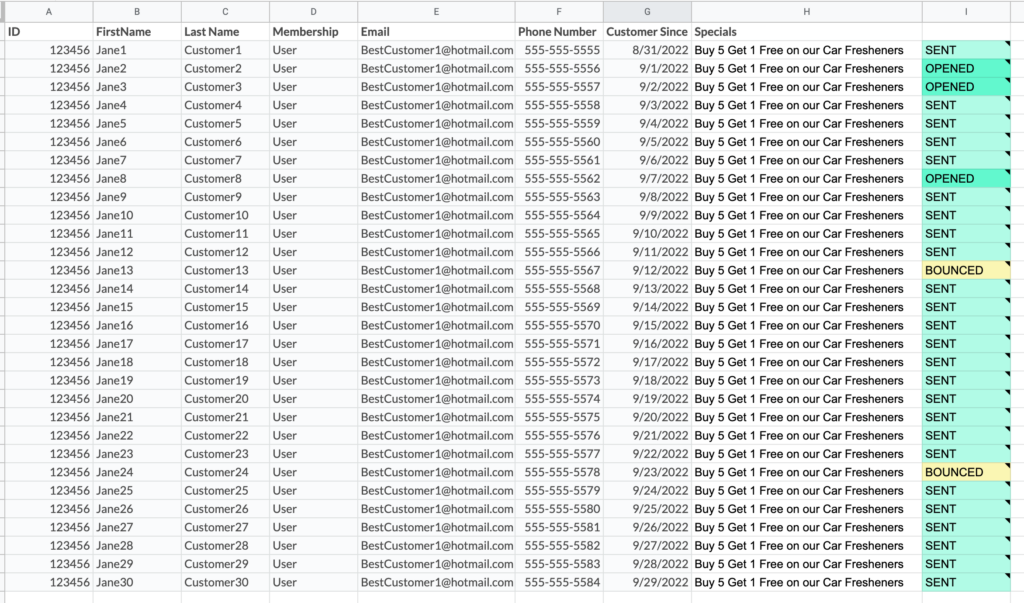
Example of Google Sheet
The last column will be created by Mergo AFTER the email is sent and is there to display your send/open results. Don’t edit this column.
After you install Mergo, it will appear on the side of your Google sheet as a green and yellow Paper Airplane logo. When click to open, you’ll be presented with the options shown below in #1 screenshot.
- Selecting to Send your campaign is where you start.
- You’ll then, select the Email you just created in the steps above and Click Send
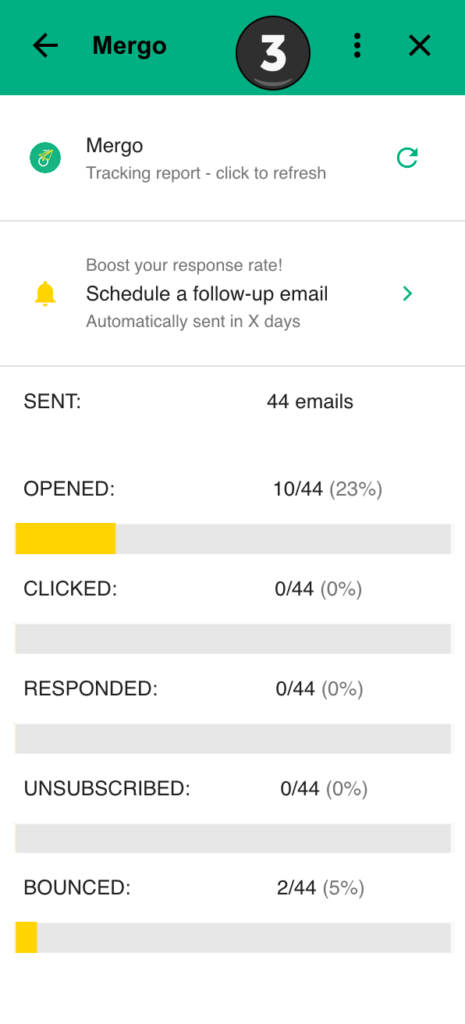
- Then use the arrow to go back and select Campaign Tracking and you’ll see how many have opened, clicked, responded or unsubscribed.
- Your Spreadsheet will also have a column at the end that will show sent, opened, bounced, unsubscribed, clicked and responded.
That’s it !! There’s a lot you can do with this, be creative! Test with your email first always and then copy in everyone’s email after. Hope this helps!